Claude (Anthropic)
INFO: Claude’s MCP Implementation – Claude.ai fully supports the Model Context Protocol specification, including all tool types (read and write operations). MCP servers integrate seamlessly with Claude’s Projects feature for automatic context retrieval.
Custom connectors using remote MCP are available on Claude.ai and Claude Desktop for users on Pro, Max, Team, and Enterprise plans. The Free plan doesn’t include access to custom MCP connectors.
Claude Support – Getting Started with Custom Connectors Using Remote MCP
TIP: Use Projects for Automatic Memory Retrieval
Create a Project with custom instructions to make Claude automatically retrieve context on the first turn of every conversation. For example:
“On your first turn: retrieve memories with User-Profile labels, retrieve the last 2 memories, and retrieve any reminders.”
This creates a seamless experience where Claude greets you by name and references past conversations without being asked. MCP tools work in normal chats too, but Projects make the retrieval automatic.
Prerequisites #
- Claude.ai account (Pro or higher)
- MCP server running and accessible
- OAuth configured if using authentication
Setup #
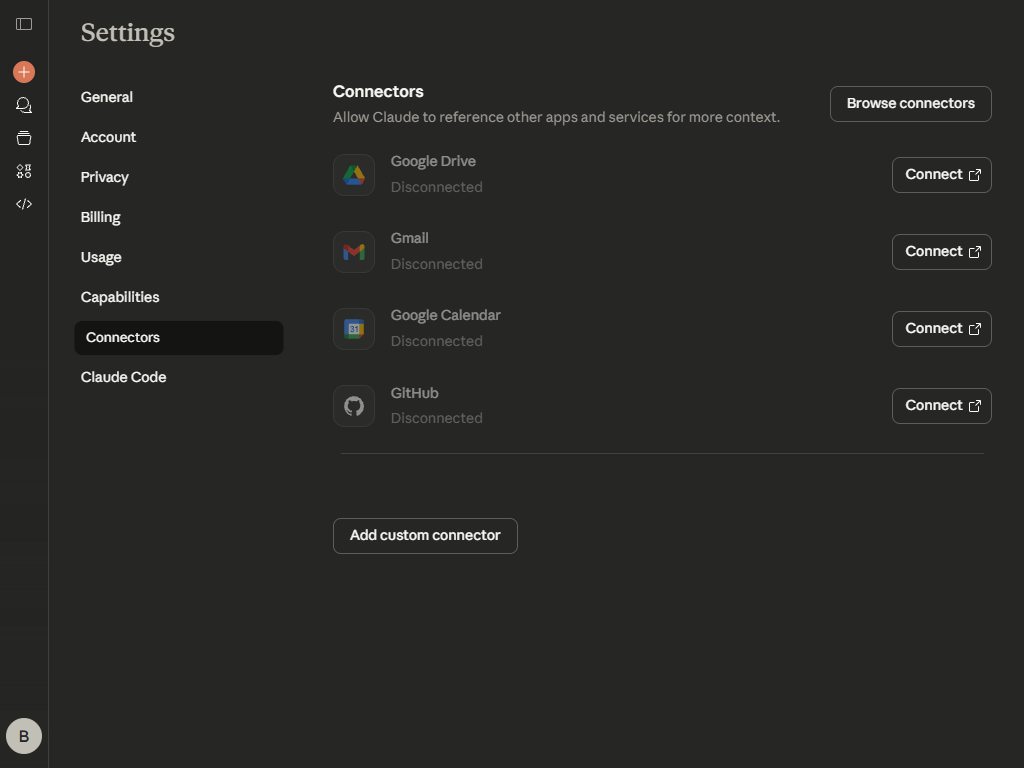
Click on your user menu and select Settings
Navigate to Connectors
Click Add custom connector
Fill in your MCP server details:
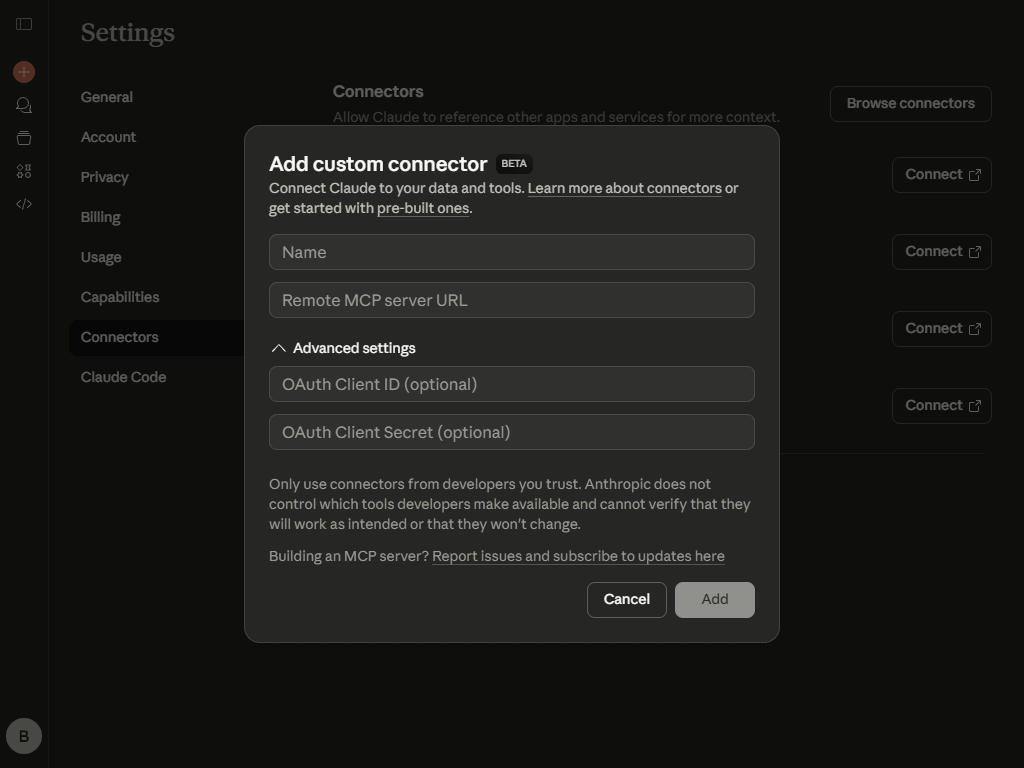
- Name – How this MCP server appears in Claude (e.g., “My MCP”)
- Remote MCP server URL – Full HTTPS URL (e.g.,
https://my.example.com/mcp) - Advanced settings (expand to configure OAuth):
- OAuth Client ID (optional) – Your OAuth client ID
- OAuth Client Secret (optional) – Your OAuth client secret
Click Add
You will be redirected to your OAuth provider to authorize the connection.
Authorize the connection
Enter your credentials to authorize Claude to access your MCP server.
That’s it! Your MCP server is now connected.
Testing #
Start a new chat
Access your connector:
- Click the [+] icon in the prompt input area
- Select Connectors
- Choose your MCP server
Verify tools are available:
Ask:
Do you have access to any MCP tools?Claude should confirm access to your MCP server’s tools.
Test a tool invocation:
Try calling one of your MCP server’s tools to confirm connectivity.
INFO: First-use approval – On first use of MCP tools, you’ll be prompted to approve access. You can choose to approve once or set “always allow” for future use.
Managing Permissions #
Claude provides granular control over MCP tool permissions:
- Navigate to Settings → Connectors
- Click Configure next to your connector
- Configure permissions at three levels:
- Global categories: Set defaults for “Read-only tools” and “Write/delete tools”
- Individual tools: Expand categories to set per-tool permissions
- Permission states: Choose “Always allow”, “Needs approval”, or “Blocked” for each tool
This allows fine-grained control - for example, you can trust all read operations while requiring approval for writes, or whitelist specific tools while blocking others.
Client-specific usage, quirks and limitations #
Projects Support: Claude’s Projects fully support MCP tools. This is the recommended way to use memory retrieval for persistent context across conversations. Set up custom instructions in Projects to make Claude automatically retrieve relevant context on the first turn.
Tool Citations: Claude can naturally reference and cite information retrieved from MCP tools in conversation responses.
Permission Management: Unlike some MCP clients, Claude provides professional-grade permission controls with approval dialogs on first use and granular per-tool configuration.